- The most powerful iCloud Bypass ever.Compatibility: iPhone 5s – X, iPod touch 6/7, Ipad Air/ Air 2, Mini 2/3/4, Ipad 5/6/7, Ipad pro 1/2Supported iOS 12.3 To 13.4.1, iOS 13.5, iOS 14 and beyond WE ARE NOT RESPONSIBLE FOR WHAT YOU DO WITH YOUR DEVICE THIS IS ONLY FOR EDUCATIONAL PURPOSES. Wait a few more seconds and the iCloud activation on.
- Unlock iCloud 13 offers a free Check IMEI Service: send us IMEI or Serial Number to see your iPhone, iPad, iPod Touch, iWatch, with our service check the IMEI or Serial Number of your Device, through the check the IMEI or Serial Number we'll confirm if the iCloud of the device are often unlocked simple and reliable. Within 1 to 24 hours you.
“Hello, I have an iPhone 12. My iPhone has an activation lock and I don’t know password. Please help me activate the iPhone without Apple ID password!” --- From Apple Discussions
The iCloud Bypass term becomes a huge impact for the iOS users right now. This is a huge and much a turning point for the users who suffer from the iCloud locked issue. In the public, this iCloud locked issue become a huge mess, because when the u.
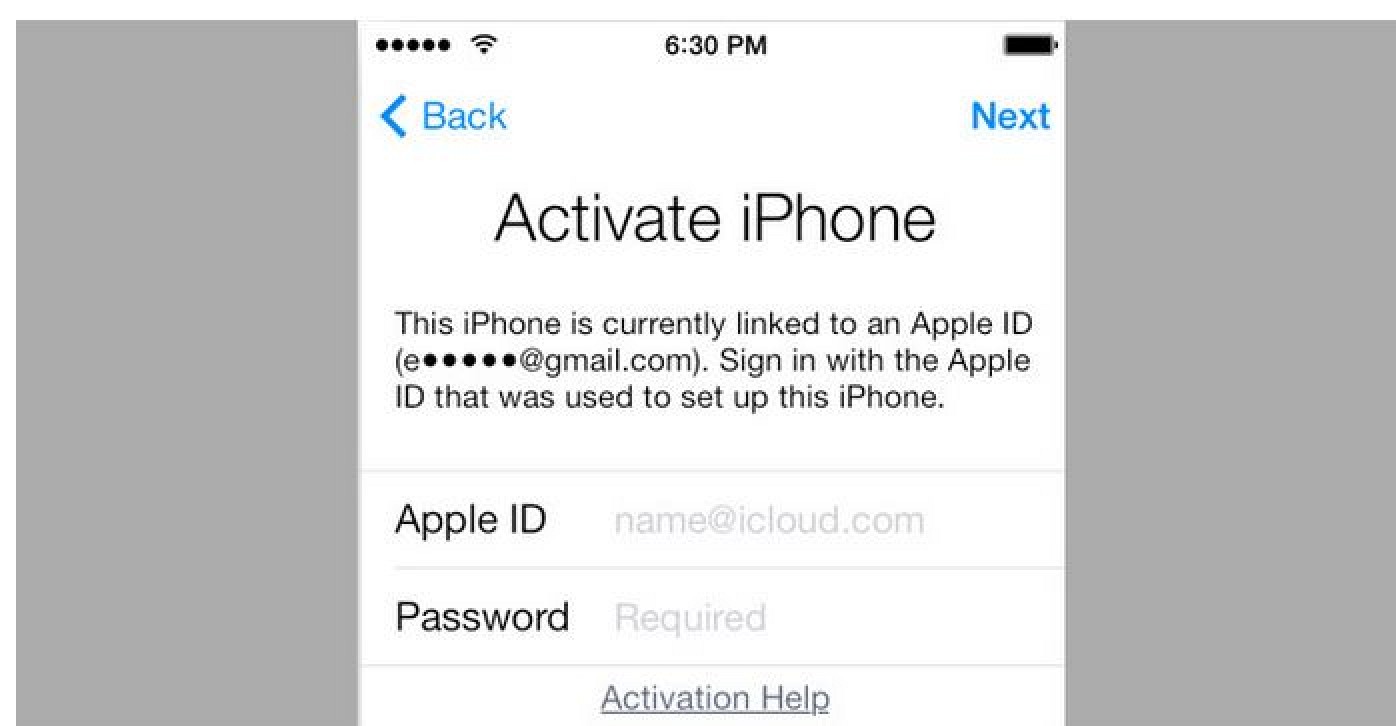
The Activation Lock on your iPhone is a security feature that is meant to keep someone else from unlocking the device. This can come in handy when your iPhone gets lost or stolen since the thief will not be able to activate your iPhone without the Apple ID or password.
However, it can also cause troubles. For example, you may forget your Apple ID and the password, or you buy a used iPhone online only to find that it is linked to an Apple ID. Without the correct Apple ID and password, you won't be able to activate this iPhone.
Can you activate an iPhone without Apple ID? Yes, you can. In this article, we will walk you through some simple approaches to activate an iPhone so that it can be used even if you don't know the Apple ID and password.
This guide covers all iPhone models, including iPhone 12/12 mini/12 Pro (Max), iPhone 11/11 Pro (Max), iPhone XR/XS/XS Max, iPhone X/8/7/6s/6, iPad Pro etc.
Part 1. What Is Apple ID
Before we get into the solutions to activate iPhone without Apple ID or password, let's first learn what is an Apple ID. Well, your Apple ID is the account for everything you can do with Apple devices. Whether you own an iPhone, iPad, Mac or Apple TV, you will be asked to sign in or create an Apple ID to use the device. The Apple ID can be used to access various Apple services, such as iCloud, App Store, iTunes Store, Apple Music, iMessage, FaceTime and many more.
If in case you do not remember your Apple ID or buy a used iPhone that is iCloud locked, then keep reading and try out these simple solutions below.
Part 2. Your Own iPhone: Forgot Apple ID or Password? Find or Reset It
If you forgot your Apple ID or password, Apple will temporarily suspend it, meaning that you are unable to access the above mentioned services. Thankfully, there are still ways to find your Apple ID or reset its password. Let's take a look at both.
Option 1. Reset Your Apple ID Password
If you have forgotten the Apple ID password, follow these simple steps to reset it and activate your iPhone:
- Go to Apple ID account's official page and click on 'Forgot Apple ID or password'.
- Enter your Apple ID to get started and then enter the phone number you used when creating the Apple ID.
- You should get a confirmation call or text on your phone. Simply follow the instructions to reset the Apple ID password.
Option 2. Find Your Apple ID
You may also be able to find your Apple ID if you don't remember it. Just follow these simple steps to do that:
- Go to https://appleid.apple.com/ and click on the 'Forgot Apple ID or password' link.
- When asked to enter your Apple ID, click on 'Look it up'.
- Enter your first and last name as well as your email address. You should also neeed answer any security questions that you may have set up.
- You will receive an email with a link to get your Apple ID and a new password to sign in
Part 3. For 2nd-hand Owner: Remove Apple ID on iPhone with the Previous Owner
If you purchase an second-hand iPhone but it requests for someone else's Apple ID and you can't use it, you can simply contact the seller and ask for the previous owner's Apple ID. Begin by contacting the seller and explaining that you are unable to activate the iPhone since it is still associated with their Apple ID. If the seller lives fairly closeby, you can bring the phone to them. They can then just enter their Apple ID on the Activation Lock screen, allowing you to continue with the normal activation process.
If the seller is very far from you and they can't access the phone, you can ask them to remove the Activation Lock remotely using iCloud. Here's how to do it:
- Go to iCloud.com on any device and sign in with Apple ID and password.
- Click on 'Find iPhone' then followed by 'All Devices'. Click on the iPhone they sold to you and tap on the 'i' icon to view the details.
- If necessary, click 'Erase iPhone'. After that, click on 'Remove from Account'.
- Once it is done, you can restart the iPhone and set it up as normal.
Part 4: Remove Apple ID from iPhone without Password
Contacting the previous owner of the device is probably the most ideal solution, but it will only work if you know the previous owner, which obviously doesn't apply to everyone. In this case, you can look through the methods in this part to remove Apple ID without knowing the password.
Option 1. FoneGeek iPhone Passcode Unlocker - The Most Recommended Way
The best way to remove the Apple ID even if you don't have the password is to use a third-party tool like FoneGeek iPhone Passcode Unlocker. This tool is specifically designed for this task, allowing you to remove the Apple ID from all types of iOS devices easily and quickly. Once the Apple ID is unlocked and removed, you can then go ahead and set up the device.
Key Features of FoneGeek iPhone Passcode Unlocker:
- Instantly remove Apple ID from iPhone without knowing the password.
- Delete the previous owner's Apple ID and create a new one.
- Unlock various kinds of screen passcodes for iPhone or iPad.
- The process of removing Apple ID and unlocking iPhone screen passcode is fast, simple and effective.
- Compatible with all iPhone models including the newest iPhone 12/11 as well as all versions of iOS including iOS 15/14.
Here's how to remove the Apple ID without password:
Step 1: Download and install FoneGeek iPhone Passcode Unlocker on to your computer and launch it. In the main window, click on 'Unlock Apple ID' from the two options presented
Step 2: Connect the iPhone to the computer to remove the Apple ID from it. When needed, you should also tap 'Trust This Computer' to allow the program to detect the device.
Step 3: If the 'Find My iPhone' is off, just click on 'Start Unlock' and the unlocking process will begin automatically.
Step 4: The process will only take a few seconds. Once it is complete, a popup window will appear notifying you that the process is complete and the Apple ID has been removed from the iPhone successfully.
Option 2. iCloud DNS Bypass
Using iCloud DNS bypass is not the perfect method to activate iPhone without the owner’s Apple ID or password. That’s to say, it cannot fully activate your iPhone.
Step 1. Factory reset the iPhone from Settings until you go the to WiFi page.
Step 2. Click on 'i' icon next to the WiFi netowork and click on DHCP tab.
Step 3. Enter the DNS IP address. Here are the IP address for different regions.
- NA: 104.155.28.90
- EU: 104.154.51.7
- Asia: 104.155.220.58
- Elsewhere: 78.100.17.60
Step 4. After entering the IP address, normally connect to the wifi network.
Step 5. Click on Back button and 'Activation Help'. The iPhone will connect to the bypass server. After that, you can access your device without entering Apple ID.
Cons of this method:
- You need to factory reset your iPhone first. If you don’t do that, you will need to repeat the steps above.
- This method will not turn off Apple ID, it just removes the iCloud activation lock.
- If the IP address is invalid, you need to enter a different DNS IP and try again.
Option 3. Ask Apple Store for Help
This method is not recommended since the process is complicated. To remove Apple ID from iPhone on Apple store, you have to prove that you are the owner of the device. This usually requires you to provide the receipt of this device.
Part 5. Bonus Tip for Buying Second-hand iPhone
To avoid purchasing a second-hand iPhone that you cannot use, here are two tips for you to watch out.
Check the activation lock
Ensure that the iCloud activation lock is disabled so that you can fully have access to your iPhone, or you will be frequently asked to enter the Apple ID and password of the previous owner.

Ensure that it is not stolen
Before purchasing the device from the previous seller or eBay, you need to check and confirm that the device is not stolen by using Apple's Activation Lock status tool. To check the status, the seller should tell you the IMEI number of the device.
Fay J. Melton has explored the area of technology and software for more than 5 years and he is enthusiastic about helping users solve various technology issues.

'For the past month and a half, I have been trying to help get into my Dad's old iPhone 5, so he can use it again because he has forgotten the activation lock password and doesn't know how to get in. Initially, I turned to YouTube, researching how to bypass activation lock. It is possible by downloading certain software that comes from scammy sort of websites. I would like to know if there is any way of doing this with a guarantee I won't get scammed.'
For various reasons, you may want to remove the iCloud activation lock without a password. Generally, it is possible to get rid of the iCloud activation lock without entering the password. Just continue reading and find the optimal way before trying it on your device.
Way 1. How to Remove iCloud Activation Lock without Password via iPhone Unlock
Way 2. How to Remove Activation Lock on iPhone without Password with Find My iPhone Remotely
Way 3. How to Remove iPhone Activation Lock without Password by Configuring DNS
Way 4. How to Get Out of Activation Lock without Password via Apple Support
Way 5. How to Completely Remove iCloud Activation Lock via Contacting Your Carrier
Extra Bonus: How to Avoid Buying a Second-hand iPhone with Activation Lock?
Way 1. How to Remove iCloud Activation Lock without Password via iPhone Unlock
Want to remove the activation lock without password and complex operation? iPhone Unlock will fulfill your demands. It doesn't require you to be tech-savvy. With only a few clicks, you can easily remove the activation lock on an iPad without a password in seconds. Besides, it also wipes the iPhone/iPad lock screen, Apple ID, and MDM in a few clicks.
Below are the key features of iPhone Unlock:
* Remove iCloud activation lock without password on iPhone/iPad.
* Unlock all types of lock screen on iPhone/iPad: 4-digit and 6-digit passcode, Touch ID, Face ID, pattern lock, etc.
* One-click to remove Apple ID without password on all iOS devices within seconds, iOS 14.2 and earlier versions supported.
* Wipe MDM without data loss.
* No tech knowledge is required, and everyone can handle it without difficulties.
* Provide on-screen instructions in each step.
* Fast and safe to use.
* Apply to all iPhone and iPad (iOS 14 and iPadOS 14 included), such as iPhone 12 Pro Max/12 Pro/12/12 mini/SE/11 Pro Max/11 Pro/11/XS Max/XS/XR/X/8/8 Plus, iPad 8/7/6/5/4/3/2/1, iPad Pro/Mini/Air series, etc.
How to permanently remove iCloud activation on iPhone or iPad?
1. Install iPhone Unlock on your computer.
After installing the app, please open it and choose Screen Unlock on the interface. Next, navigate to the Unlock Apple ID section and tap the Remove Active Lock option.
2. Jailbreak your iPhone.
Follow the on-screen Jailbreak Guide to jailbreak your iPhone on the Windows PC. After reading the warnings, tick I have read and agreed to the agreement, click Next, and confirm the device information in the next interface.
3. Start the iCloud activation lock removal.
Press the Start Unlock button to start removing the iCloud activation lock. Please wait for a few seconds until the removal process is complete.
Further reading:
Way 2. How to Remove Activation Lock on iPhone without Password with Find My iPhone Remotely
If you got a second-hand iPhone but it comes with the iCloud activation lock, you can contact the previous owner to remove it remotely over the Find My iPhone website. Note that this way will erase all the iPhone content and settings.
Follow the instructions to remove iCloud activation lock on iOS 10.2 and other versions:
1. Visit icloud.com/find from your computer browser and sign in to the website with the same Apple ID and password you use on the locked iPhone. (In this case, ask the previous owner)
2. Click All Devices on the top, pick the locked iPhone from the list, and tap the Erase iPhone option.
3. Choose the Remove from Account option to start removing the iCloud activation lock. Once finished, you can go to the Apple official website page, choose Forgot Apple ID and password, and follow the on-screen prompts to reset your password.
Bonus: Does Turning off Find My iPhone Disable the Activation Lock?
Yes. Switching off the Find My iPhone feature on your iPhone will disable the iCloud activation lock. It also frees you from Apple ID lock, Screen Time lock, and screen lock. You can disable the iCloud activation lock by going to Settings > tapping your name > choosing Find My > toggling the Find My iPhone option off > offering your Apple ID and password to verify > hitting the Turn Off button.
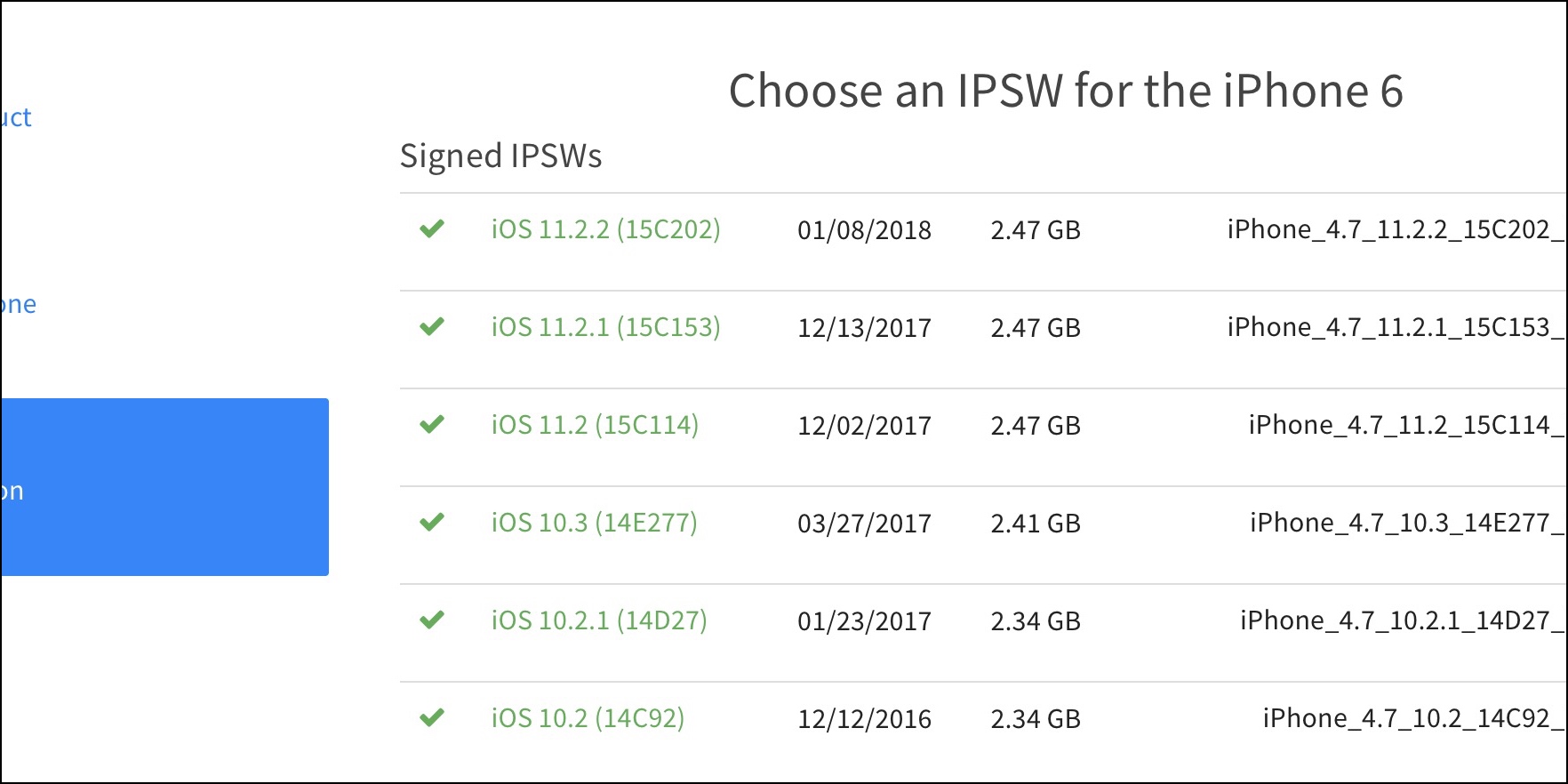
Custom Ipsw Iphone 5
Tip: Wonder how to get into a locked phone quickly? Browse the top 11 iCloud removal tools to access your locked iPhone without a password.
Way 3. How to Remove iPhone Activation Lock without Password by Configuring DNS
This method uses the iOS bugs to accomplish the iPhone activation lock removal without a password. The idea behind it is to fool the iPhone into communicating with a fake activation server that responses with 'the device is unlocked'. It won't work on newer iOS versions like iOS 14 or later since the bug has been fixed. In fact, it may only work on iDevices running iOS 8 to iOS 10.
Before you start the operation, you should know that it may not always work on an iPhone, and you may run the risk of exposing all of your usernames and passwords to an unknown third-party DNS supplier. More than that, changing the DNS server will also stop you from accessing some iPhone features, and tech novices will feel a bit complicated to handle.
If you are up for the challenge, kick off the steps below:
1. Restart your iPhone or iPad and set it as a new device.
2. When you reach the Choose Wi-Fi Network option, connect your device to a stable Wi-Fi network, and tap the circled i icon next to the network name to open more Wi-Fi settings.
3. Click the Configure DNS option, choose Manual, and tap the Add Server button.
4. Pick and enter the server address of your location from the following values:
- USA: 104.154.51.7
- Europe: 104.155.28.90
- Asia: 104.155.220.58
- Australia and Oceania: 35.189.47.23
- Africa and other locations: 78.109.17.60
Ipsw Without Icloud Activation Download
5. Tap Save. Then, back to the last screen and enable the Ask to Join Networks option. That's it!
Way 4. How to Get Out of Activation Lock without Password via Apple Support
If you would not use the third-party tool and other ways would not work on your iPhone, you can contact the Apple support team and ask them to help you get rid of the iCloud activation lock from your device remotely. Apple support team may require you to show the purchasing document to verify that you are the device owner. If you cannot prove yourself to be the owner, Apple will refuse to help you.
Moreover, Apple will also inspect whether the iPhone has been reported stolen or missing. If yes, Apple won't assist you in bypassing the iCloud activation lock. Of course, you can take along the receipt or other ownership documentation to the nearby Apple Customer Center for help.
Generally, if you get the iPhone from the official channel, Apple will charge nothing for the iCloud activation lock removal. If you buy a second-hand iPhone online, you can also contact the seller to remove the iCloud activation lock.
Way 5. How to Completely Remove iCloud Activation Lock via Contacting Your Carrier
Ios 5 Ipsw
Everyone iPhone has an IMEI number. Usually, you will find the IMEI number from the SIM tray or activation screen. When the iCloud activation lock disables your iPhone, you can call your carrier associated with the IMEI code and take advice from him. To know which carrier your iPhone belongs to, you can check with the IMEI number on a professional IMEI checking website.
Extra Bonus: How to Avoid Buying a Second-hand iPhone with Activation Lock?
Before purchasing a second-hand iPhone, do you know how to avoid buying an iCloud activation locked iPhone? Here are some helpful tips for your reference:
- Buy a used iPhone from authorized and trustworthy resellers.
- Ask for a receipt with your name and device serial number on it.
- Try to contact the previous iPhone owner to verify the authenticity of the contact information.
- If the iPhone greets you with Hello on the screen when rebooting, it is unlocked with the activation lock.
- If the iPhone requires you to enter the Apple ID and password, it is locked. You can contact the previous owner and ask him to erase the iPhone with the exact Apple ID used for the iPhone from iCloud.com with the method demonstrated in Way 2.
Final Thoughts
Browsing through the five methods above, you will find that only iPhone Unlock is the best way that is worth a try. It completely removes the iCloud activation lock without password/Apple ID/ Wi-Fi network on all iPhone models in a few seconds. Furthermore, you won't lose any data after iCloud activation lock removal.
Ipsw Without Icloud Activation
By comparison, you may not succeed if you choose the other four solutions because the methods may not work or the contact may refuse you. Well, how will you choose?
Related Articles: